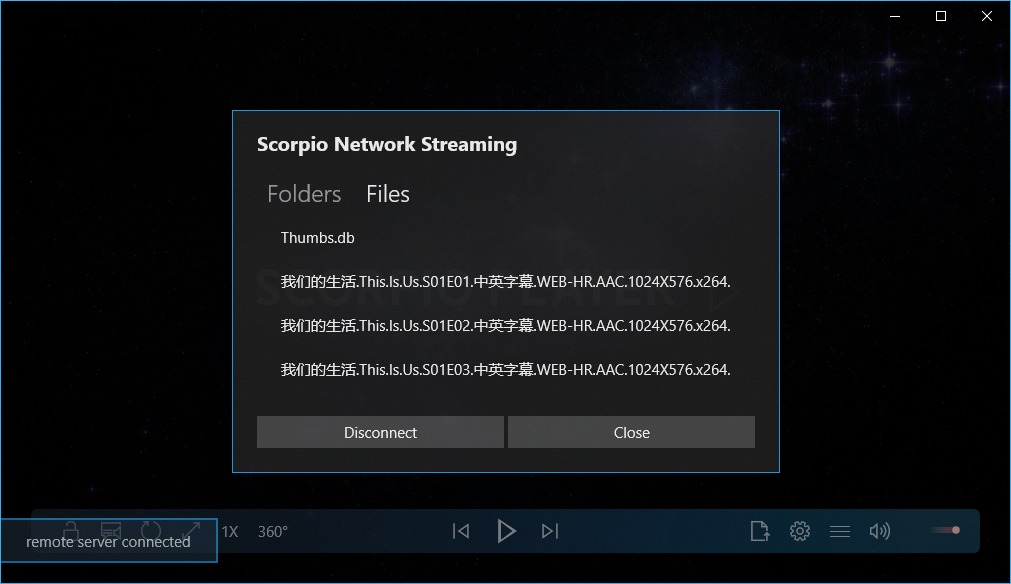
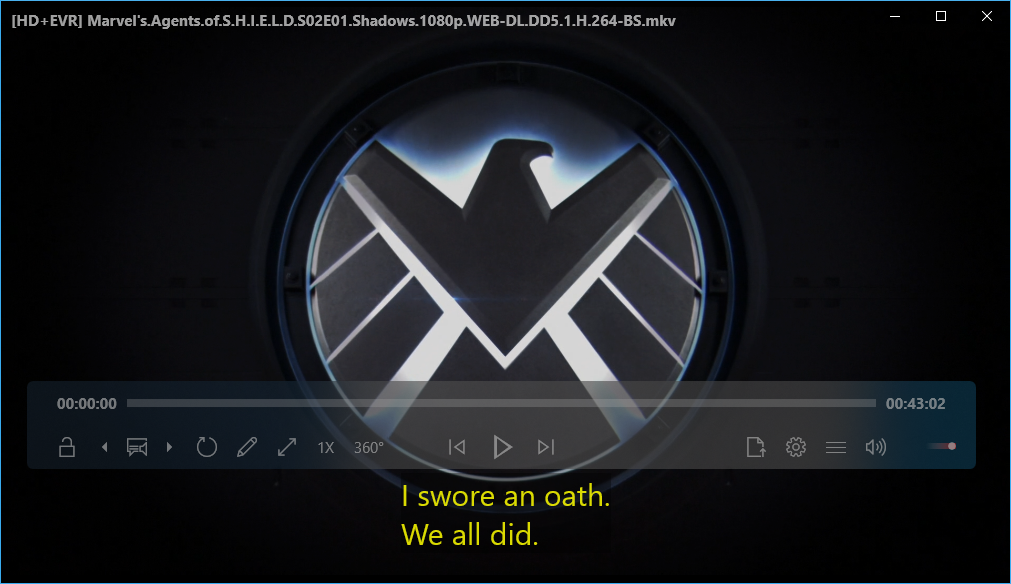
This tutorial guide will walk you through the steps to setup Scorpio Media Server Feature.
Steps
- Download Scorpio Media Server App, click link to download → Link
- Download Scorpio Player From Microsoft Store
- Setup Scorpio Media Server
- Start Stream Your Media Content To your Scorpio Player
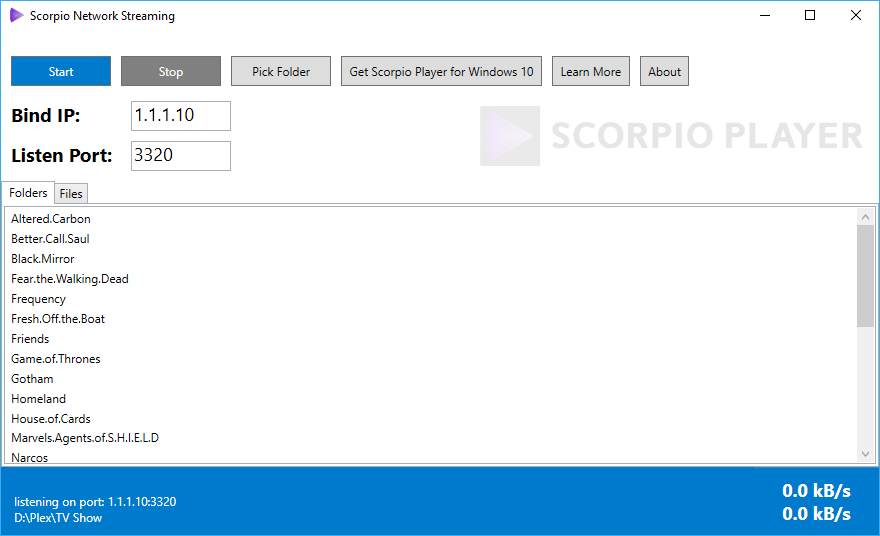
After installing Scorpio Network Streaming App for Windows you should see this:
In order to use Scorpio Media Server you need to know what your PC IP Address is, for example 192.168.1.110, 192.168.0.110, or you can listen to every network using 0.0.0.0, and listen to port default is 3320 (you are free to change it if you want). Then select root folder to share your media content. This folder should include Folders and Files (sub folder in this version is not supported). Click Start button — if you see listening on port 1.1.1.10:3320, you are good to go!
Like this:
Start Scorpio Player...
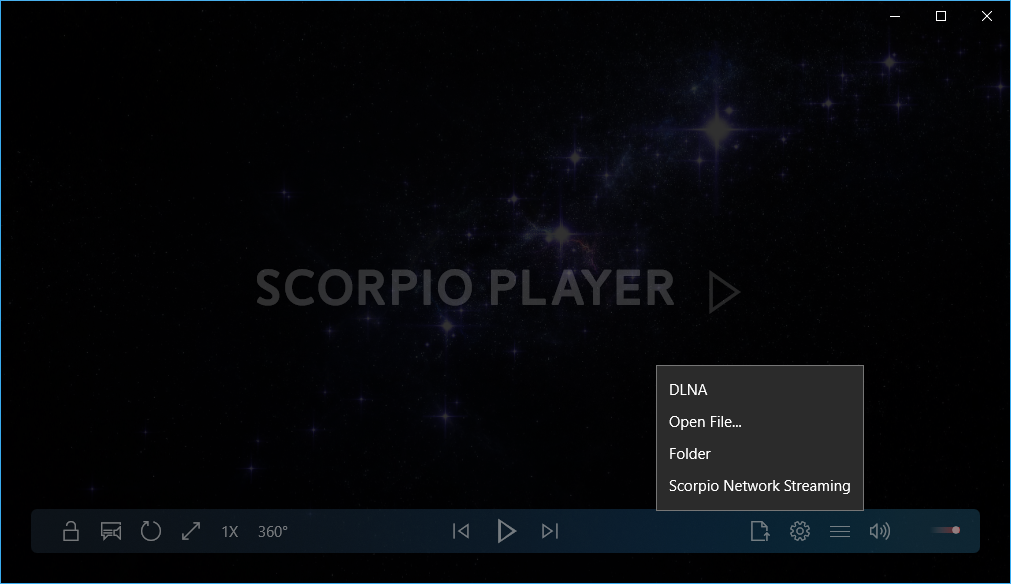
Click Scorpio Media Server
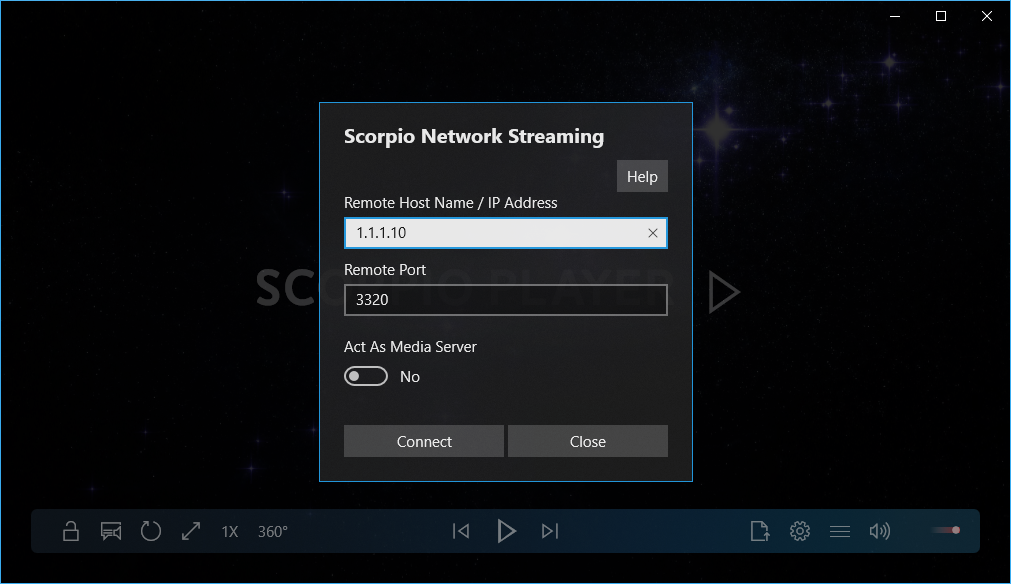
Then you should be able to see the server streaming files to your Scorpio Player.