Did you know that you can play 4K HDR videos on your Xbox One or Xbox Series console with Scorpio Player? This powerful media player app can handle any format and give you the best performance and stability. But there's a catch: you need to enable Game Mode for the app. Here's how to do it and why it's worth it.
What is Game Mode and Why You Need It
Game Mode is a feature that allows you to allocate more system resources to a UWP app on your Xbox console. Normally, UWP apps are limited to 1 GB of memory and 2 shared CPU cores, which can affect their performance and stability. But with Game Mode, you can give the app access to 5 GB of memory and 4 exclusive and 2 shared CPU cores, which are normally reserved for games.
This means that your app will run faster, smoother, and more reliably, especially when playing high-resolution videos or other demanding formats. Scorpio Player is a media player app that can benefit from Game Mode, as it can play 4K HDR videos and other formats on your Xbox One or Xbox Series console.
How to Install Scorpio Player on Xbox One and Xbox Series
To install Scorpio Player on your Xbox console, you need to follow these steps:
- Register for a Microsoft Partner Center Developer Account (which may cost 20$).
- Use the DevKit app to enter dev mode. Restart your Xbox console. Note that in this mode, you cannot play video games.
- Download the latest build of Scorpio Player from following
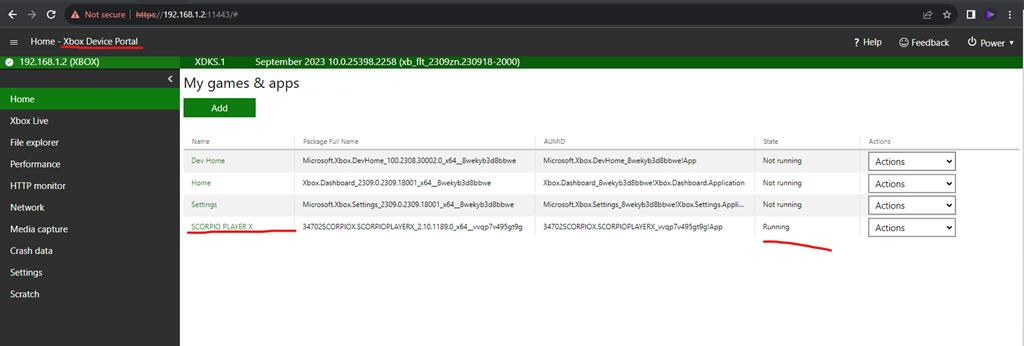
Grab the latest build from the builds page, or the downloads. Then install it using the Xbox Device Portal.
- Install the app on your Xbox console using the Xbox Device Portal.
How to Enable Game Mode for Scorpio Player
To enable Game Mode for Scorpio Player, you need to do the following steps:
- Highlight the package in DevHome's Games & apps list using your controller.
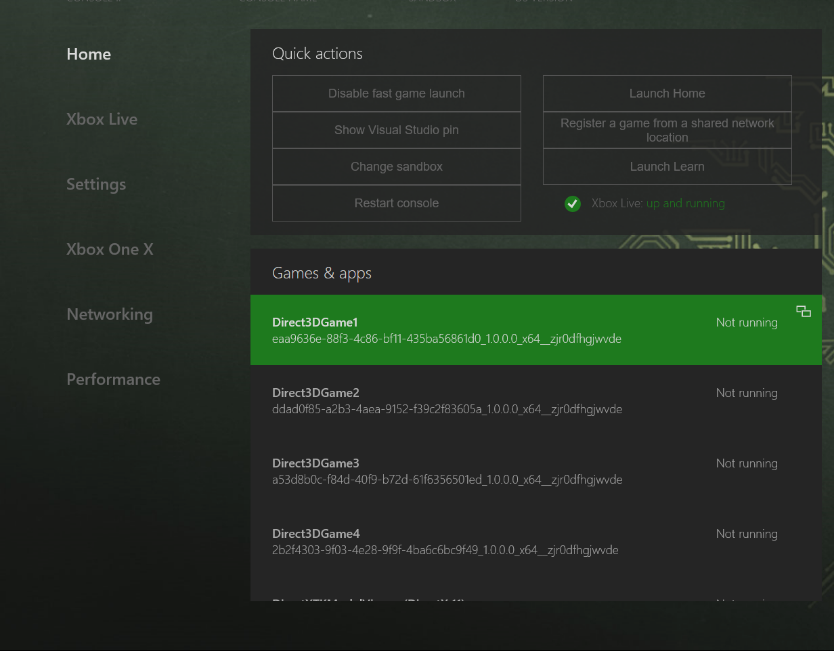
- Press the View button to bring up the context menu.
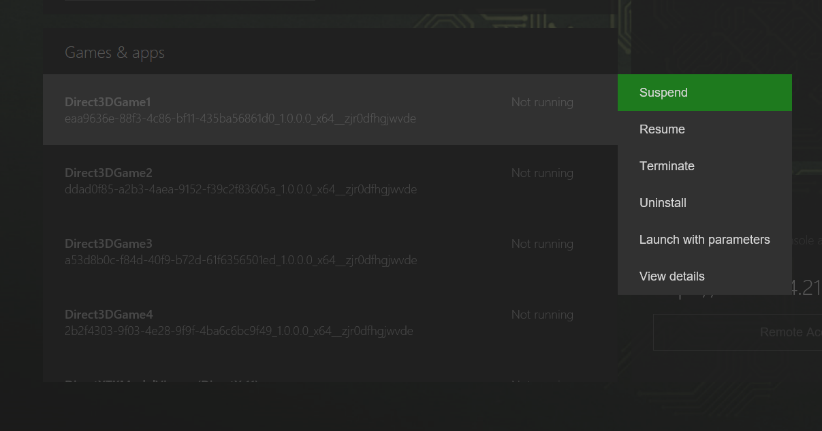
- Go down to the bottom to View details and press A.
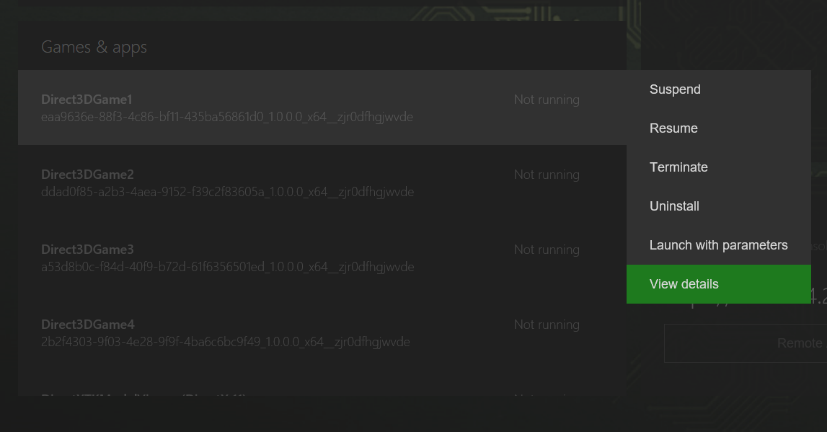
- This brings up the App details page and the App type field should be selected. Use the combo box to set it to "Game" by pressing A, down on the D-pad, and then pressing A again.
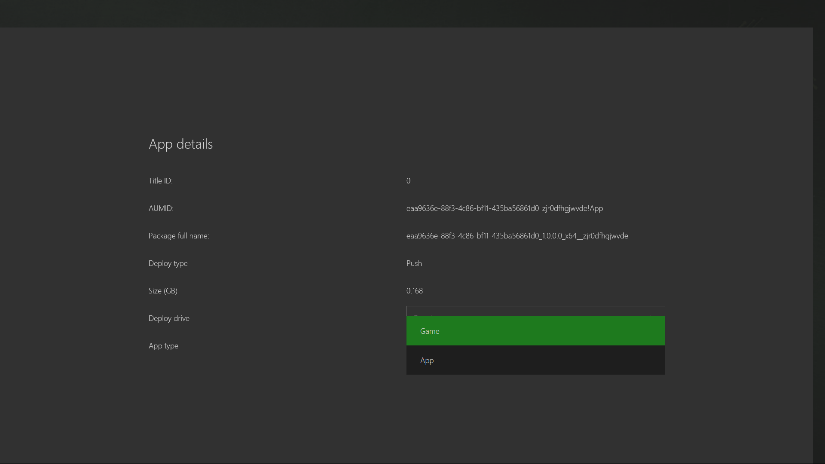
- Press B to return to the main page.
- When you start Scorpio Player, it will be running in Game Mode.
You can also enable Game Mode for all UWP apps by following these steps:
- Go to Settings > System > Developer options.
- Turn on Enable game mode for all UWP apps.
How to Exit Dev Mode and Play Video Games
To exit dev mode and play video games, you need to do the following steps:
- Press the Xbox button on your controller to open the guide menu.
- Select Dev Home and press A.
- Select Leave dev mode and press A.
- Confirm by selecting Yes and press A.
- Wait for your console to restart and switch back to retail mode.